DoorDash Integration Setup
DoorDash integration is a location-based setup. Meaning, this feature can be used at all, or only specific locations, whichever you choose.
Member Level Settings
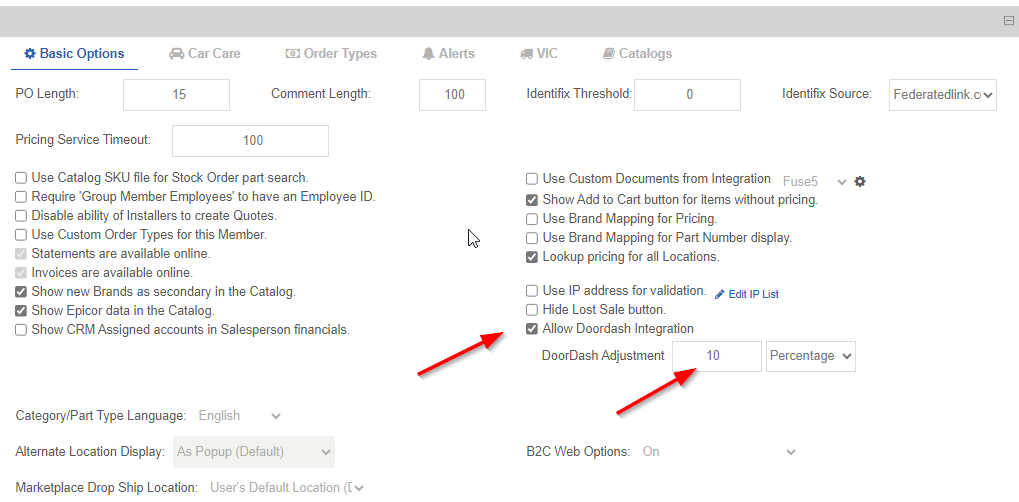
To enable DoorDash delivery options for your customer, we start the setup by going to the Member Details page, from the main menu.
Check the box for ‘Allow DoorDash Integration’ on the right side and choose if you want to setup an ‘Adjustment’ to offset the DoorDash delivery charge by Flat Rate, or Percentage. If this value is set to zero (which is the default), the customers cost will be $0.00 for all DD deliveries, and you will be invoiced the charge as a service to your customers. If you wish to pass the charge to the customers for this service, simply enter a value and make your selection.
Location Level Settings
Once this has been set, you will go to the main menu again in the upper right and choose ‘Location Management’.
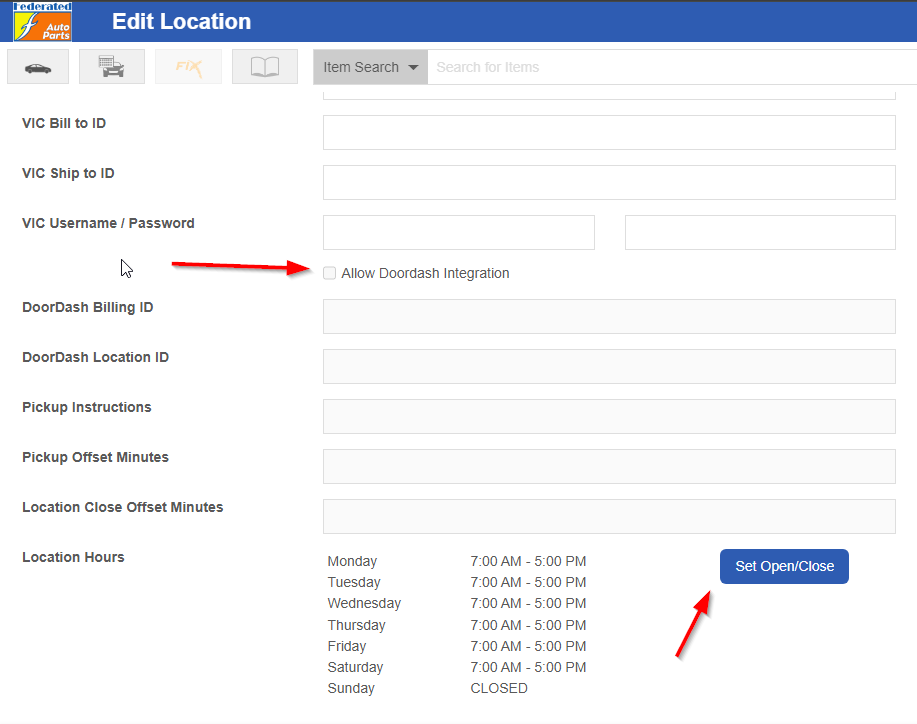
Scrolling down below the VIC settings, you will see the DoorDash options. To begin, check the box to ‘ Allow DoorDash Integration’ for this location. Then enter your DoorDash information.
After DoorDash Billing and Location ID’s, the next few fields are very important:
- Pickup Instructions
- Specific instructions pertinent to picking up parts at a specific location. Example: “Go around to the back of the building, green door”
- Pickup Offset Minutes
- The amount of time you choose to offset orders actually being sent to a Dasher, giving your team time to pick and/or pack the order.
- Location Close Offset Minutes
- The offset you chose to help order not come in around the time of closing. Example: If your location closes at 5pm, and it takes on average 20 minutes for a Dasher to arrive to pickup parts, you wouldn’t want an order to come in at 4:55. So you would choose to set an offset of no later than 4:40pm for this scenario.
- Location Hours
- This is specifically the hours in which you want DoorDash orders to be able to placed with this location. Any offset you place, will also be based on these hours.
- This is specifically the hours in which you want DoorDash orders to be able to placed with this location. Any offset you place, will also be based on these hours.
Customer Experience
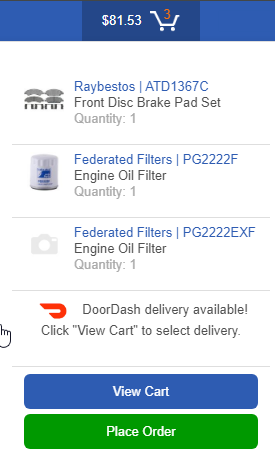
From the customer’s side, the first thing they will see that indicates to them that DoorDash is available, is the cart widget. As seen to the right, they will see a message in this widget if DoorDash is available at their ordering location.
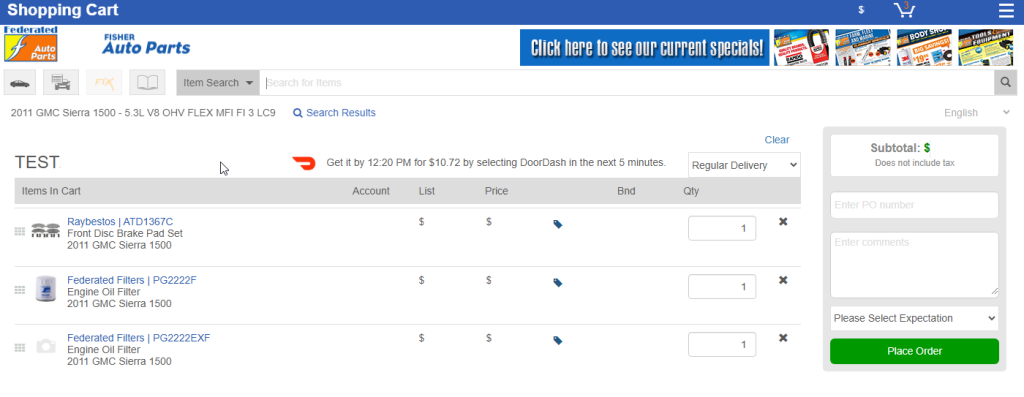
Once they go to the cart page to check out, they will see their items listed by Location header on the left, with a message regarding the availability of their DoorDash order. Example below. They will also have a dropdown menu for each location, in which they can choose ‘Regular Delivery’ which is the default, or they can click DoorDash delivery.
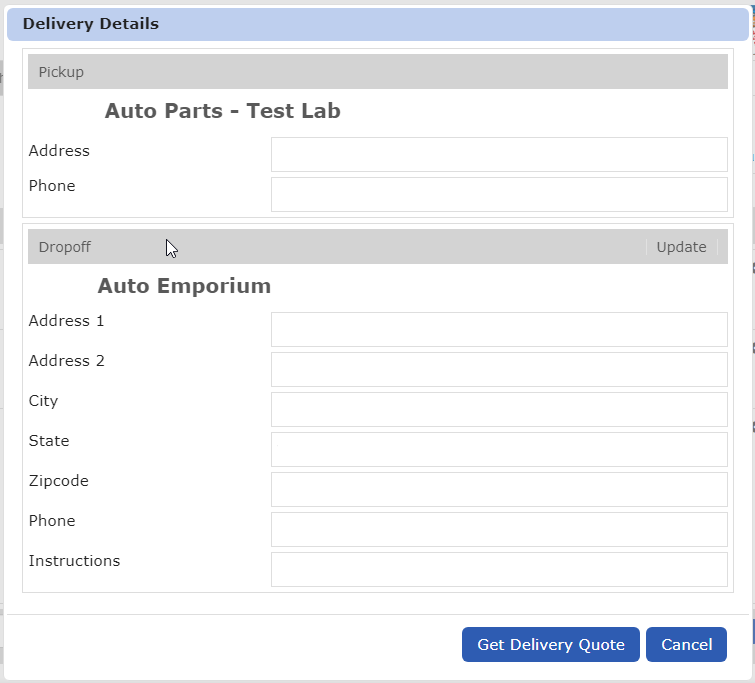
Once they select ‘DoorDash Delivery’ from the dropdown, they will be presented with an information popup to verify their Pickup and Dropoff information.
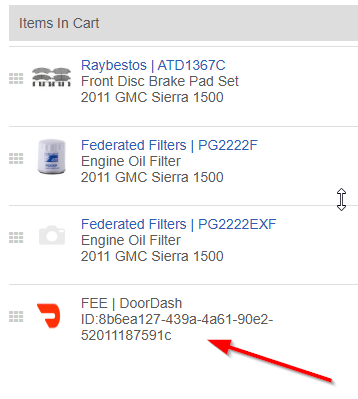
Once verified, the user clicks ‘Get Delivery Quote’ at the bottom of the window, it will add their DoorDash fee as a line item to their invoice.