How Can We Help?
Inventory Modeling
The Inventory Modeling tool allows you to find application parts that fit a given Vehicle Set, and create lists to make stocking easier and more efficient. This process is identical regardless of Vehicle Set type.
Before using this tool, you will need to have created at least one Vehicle Set, in the Vehicle Set Management tool. For instructions on how to create a Vehicle Set, click here.
For any given vehicle set, you will have selected a list of Part Types that correspond to it. Once you enter the Inventory Modeling page, you will be building an ordering list around those part types.

Select a Vehicle Set on the left to begin the workflow.
- Once a Set is selected, you will be shown your list of Part Types. Select a Brand/Part Type combination.
- You will then see all of the parts for that Brand/Part Type combination that fit the vehicles in your set.
- You can click the > next to each part on the left, to see the specific vehicles in your set that each part matches.
- You can also click the > next to the vehicle Year/Make/Model to see the vehicles full details
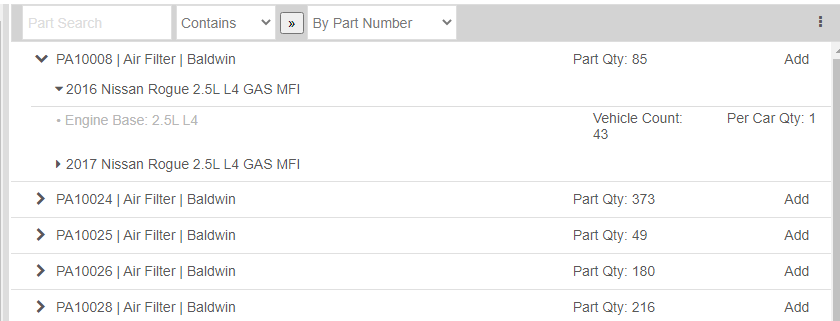
- The ‘Vehicles’ button along the top allows you to include/exclude individual vehicles from your list.
- The ‘Part Types & Brands’ button allows you to change your initial part type/brand selection
- The ‘Availability’ checkbox will search your ordering location(s) for these parts to see what is in stock.
- Once you have added your desired parts to the list by clicking ‘Add’, you will see them in the column on the right with a Quantity field. This Quantity field also serves as your “Min Stock Qty” value for each part.

- Click ‘Save’ to create a reusable Inventory Modeling List that can be used later in the List Ordering process. Each Vehicle Set can have multiple Modeling Lists.
- If you wish to make changes to an existing list, use the ‘Load’ button and select your list. Make desired changes, and then ‘Save’ again.
- Once you are ready, click the ‘Prepare Order’ button to open the Order Prep window.

- Entering your current ‘Shelf Qty’ and the ‘Net Order Qty’ will adjust accordingly.
- Clicking ‘Worksheet’ will give you a Windows Print dialogue window, if you need a physical printout to validate against.
- Once counts are done and you are ready, click ‘Add to Cart’