Vehicle Selection & Part Search
Vehicle Selection
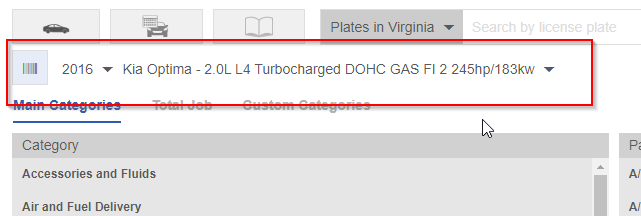
The primary method of vehicle search is the Year / Make /Model / Engine selector
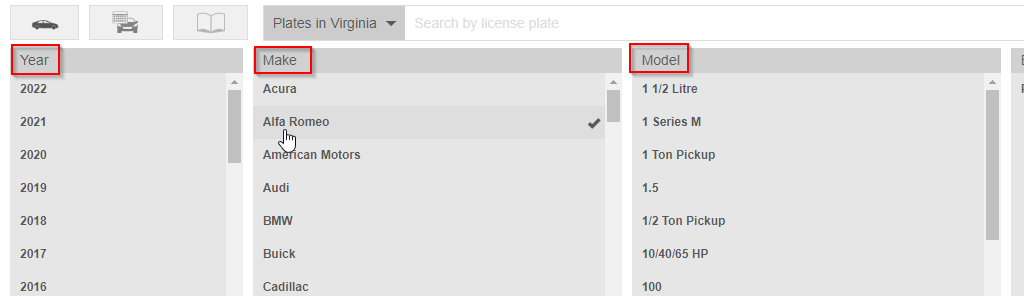
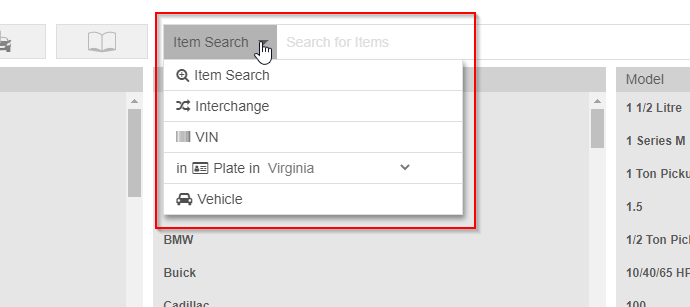
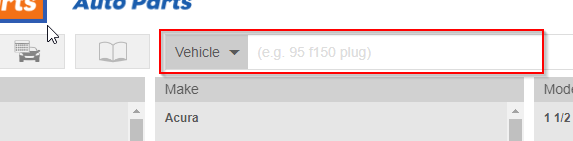
You can look up a vehicle by Plate, VIN, or by natural search as well
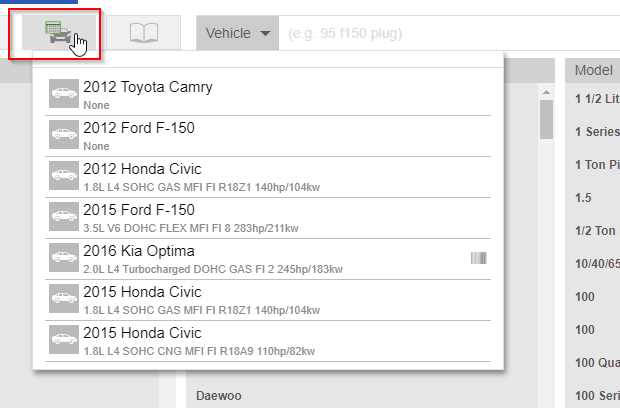
If you have already referenced a vehicle before, you can recall it in the previous vehicle menu
Once you have a vehicle selected, it will display above the Category and Part Type selectors
Part Search & Part Type Selection
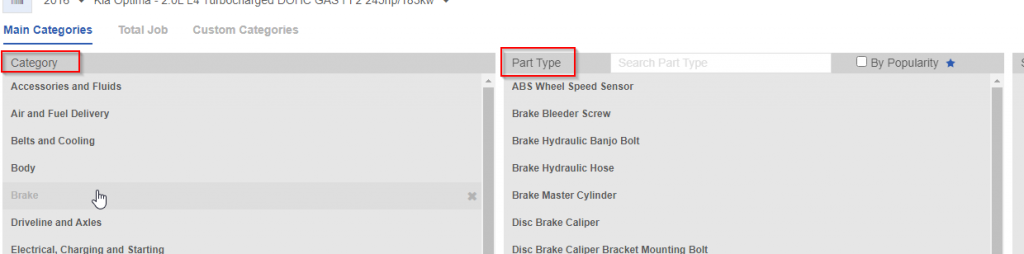
A primary method of looking up a part is by using the Category and Part Type selectors
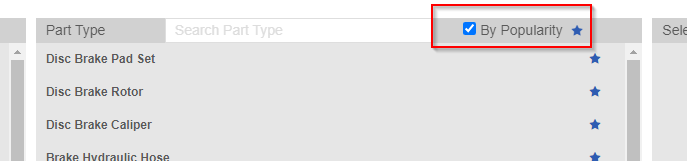
You can also focus this search method by using the ‘By Popularity’ option
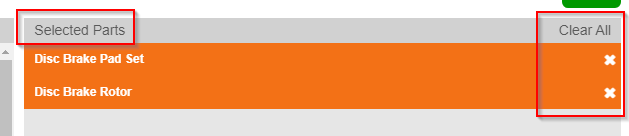
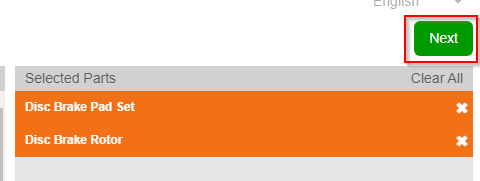
Once you have selected your desired Part Types, you will see them displayed on the right. You can also use the white ‘X’s or the ‘Clear All’ button to remove part types.
When you have finished selecting your Part Types, click the green ‘Next’ button
Parts Search Results – Pricing & Availability
This brings you to your requested parts display with pricing, availability, and additional part and labor information
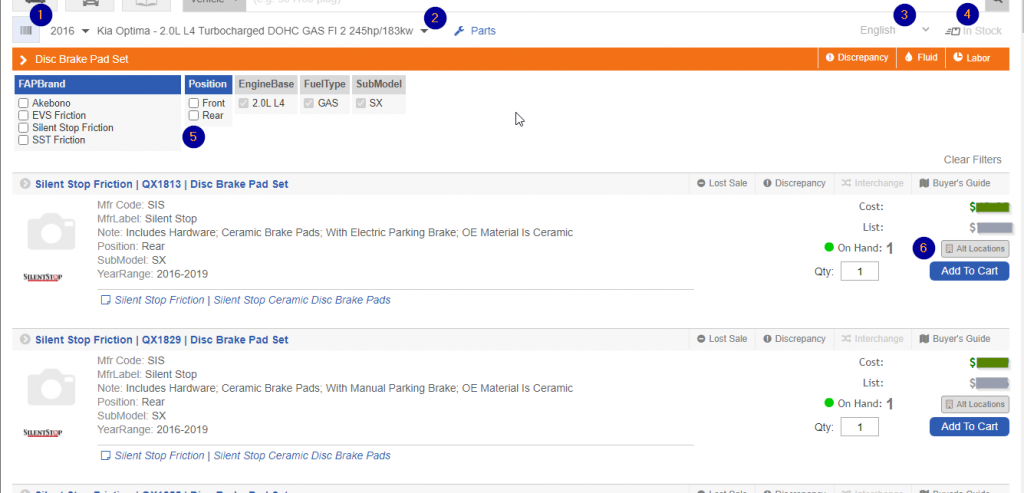
- VIN Decode button
- “On-the-fly” vehicle selector
- Language Selector
- ‘In Stock’ filter
- Attribute filter selectors
- Pricing & Availability
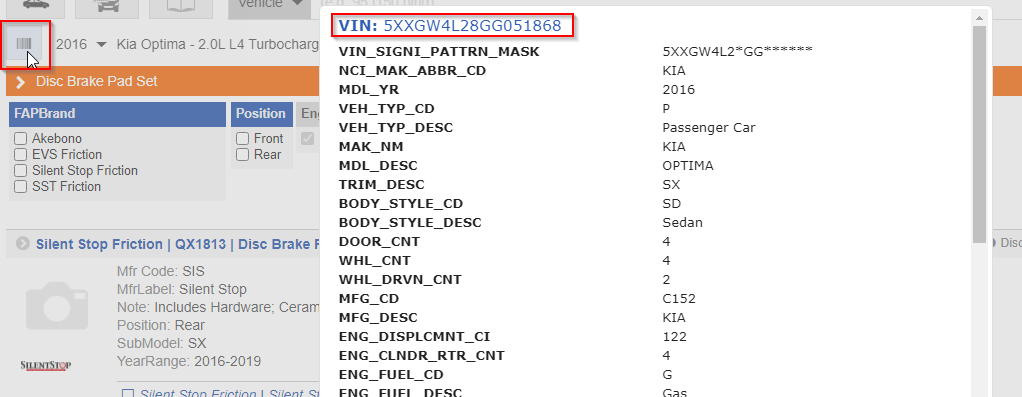
VIN Decode
When a vehicle has been looked up by Plate or VIN number, you will have decoded VIN information available
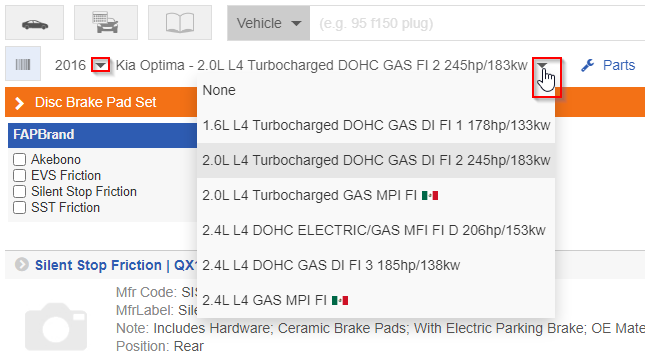
‘On the fly’ Vehicle Selector
While viewing your results, you can also change your Year and Engine selections if need be, and it will update your Part Search results
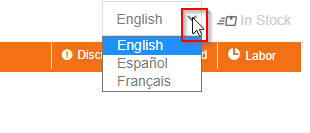
Language Selector
On this page we also offer 3 language selections – English, Spanish, and French
‘In Stock’ filter
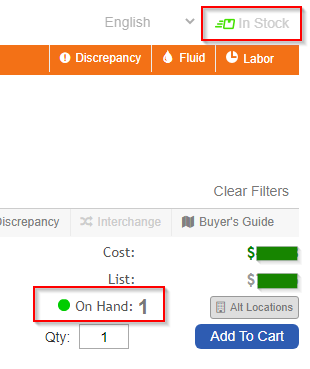
You can also filter your results to only show items that are currently In Stock at your primary or alternate locations
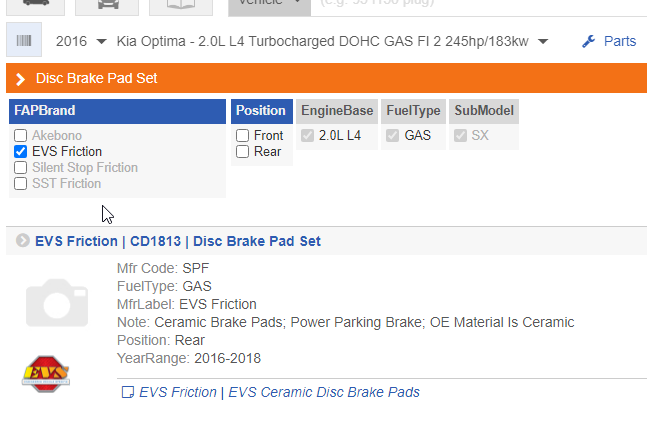
Attribute Filters
You can use attributes to further refine your results
Pricing & Availability
For each part, pricing and availability is displayed on the right. For ‘On Hand’ clarification, there are 3 status you will encounter


