Banner Ad Management
Under the main menu, the ‘Banner Ad Management’ page is a tool to promote anything you’d like to get in front of your customers as they use the catalog. Examples of common banners are Sales, Events, Training opportunities, Fundraisers, or general news.
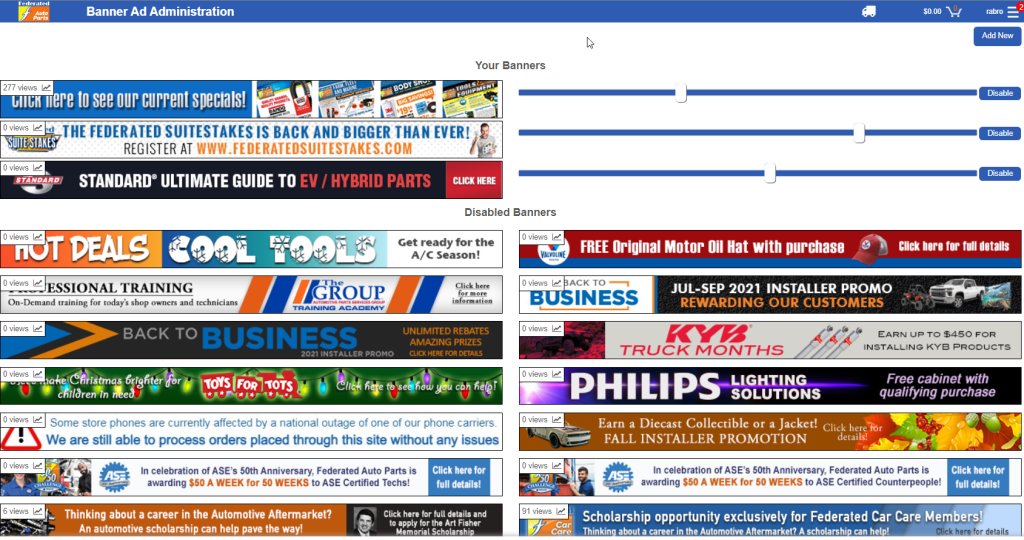
Click the ‘Add New’ button the top right corner of the page to upload a new banner. They must be 680×50 resolution, in the following image formats: .jpeg, .jpg, .png, or .gif
Once you upload a banner, it becomes an active banner in the top section of the page, labeled ‘Your ‘Banners’.
Your active banners are shown with a corresponding slider bar. These slider bars control how often each banner will be seen. Sliding the bar further to the right, increased the frequency of the banner’s appearance.
If you click on an active banner, you will see an Edit box which allows you to set a URL link or PDF document that makes the banner clickable for users. You can also set a Date Range, which is especially helpful for Promotional banners. The ‘Alt Text’ field allows you to set the hover text that will be visible as well.

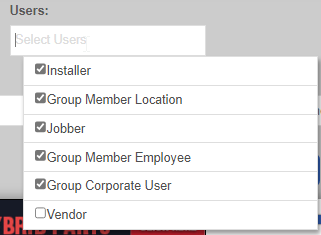
If you click the Users field, you can select which user-groups you would like to see the selected banner.
Below the section of active banners, you have any Disabled Banners you have uploaded, that are not part of the current rotation. You can hover a banner, to ‘Delete’ or ‘Enable’ them.
At the bottom of the page there is also a section for ‘Unused Flyers’ that you have uploaded to link to banners. You can click the PDF icon to view them, or the ‘Delete’ button to remove them.
