How Can We Help?
Supplier Coverage Comparison Report
This report was built to help find coverage gaps when comparing brands. It compares brands against one another for a given set of vehicle configurations and part types to identify where you may have a brand that is missing coverage.
This tool is listed under ‘Admin Tools’ in the main menu. To configure and run this report there are a few simple steps:
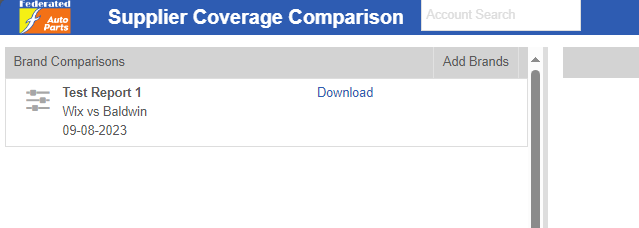
To begin, click ‘Add Brands’ at the top of the left side column.
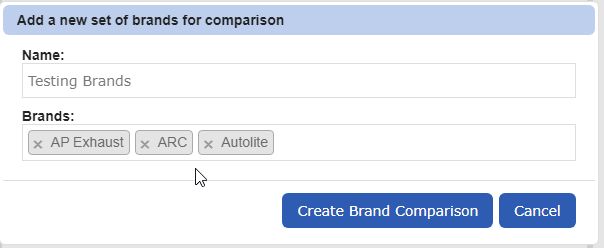
- Select the brands you’d like to compare
- Click ‘Create Brand Comparison’
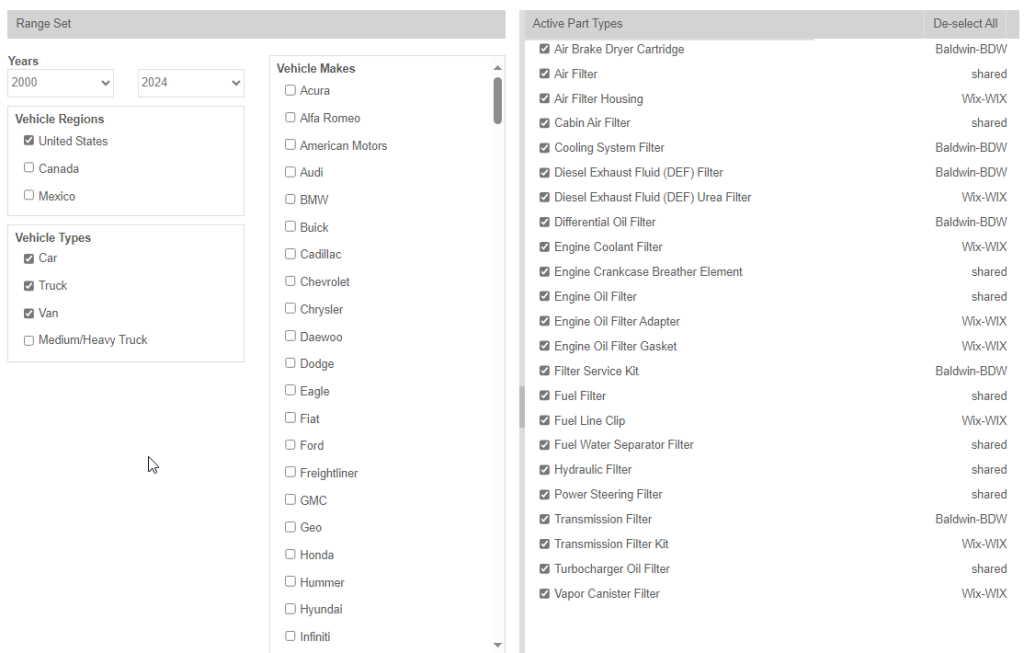
- Click on your newly created Brand Comparison on the left, to fine-tune your results. You can select specific part types, vehicle make/models, vehicle ranges, categories, etc. Click the disc icon next to your brand list on the left, to save your choices. See filters below:
- After you’ve created and fine-tuned your Brand Comparison, it will show up in the left column, likely with a ‘Pending’ status. Depending on brands chosen, this report can take a few minutes to compile. Simply refresh the page or come back in it in a few minutes to see when your report is available. You will see the ‘Download’ link when it’s completed.
- If you have a brand comparison that you have run before, but there have been catalog updates to either brand, it will display ‘Out of Date’ to the right of the report name. To update this comparison report, select the report and click the gear icon to the right. In this small menu, click ‘Refresh’ to have the system go and fetch the latest catalog updates to keep your report current.
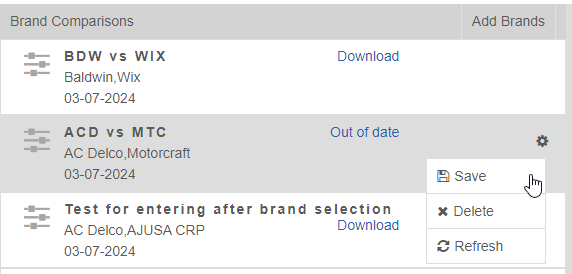
- This menu is also used to ‘Delete’ current lists, or save changes made to the configuration of the report in the right panel as shown above.