Marketplace Management
Marketplace is a feature that allows members to provide an additional source of parts to their users, by way of networking with other Federated Members. The system is simple, but powerful. You as a ‘Sharing’ member can choose which other members you wish to share with, which brands you choose to share, and even down to the specific part types you’d like to share. As a ‘Subscribing Member’ you can also choose which brands and part types you wish to subscribe to, from the available offerings shares by other Members.
To access the setup for the feature, navigate to the main menu in the top right, and click the ‘Marketplace Management’ link.
At the top of this page, you have a dropdown to access the Sharing or Subscribing pages. Choose one, and you will see the basic workflow of this process.

Both the ‘Share’ and ‘Subscribe’ workflows operate in 3 sections. Members, Brands (with Part Types), and Locations.
**Update- 10/24/23 – We have added support for Custom Catalogs to the Share & Subscribe workflows. These items are also available via the Item Search. See instructions below.
Sharing to the Marketplace
When sharing to the Marketplace, you will complete the following three steps:
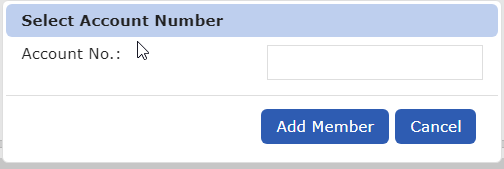
- Select Members to share too. Enter their account number.
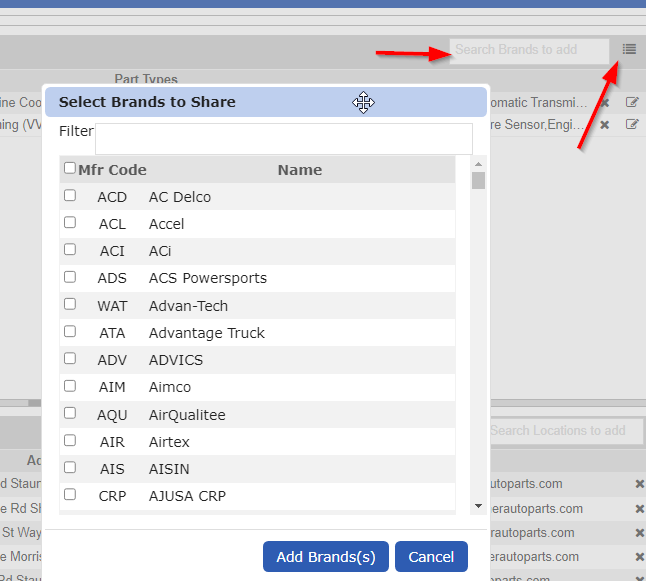
- Select Brands you wish to share with those members.
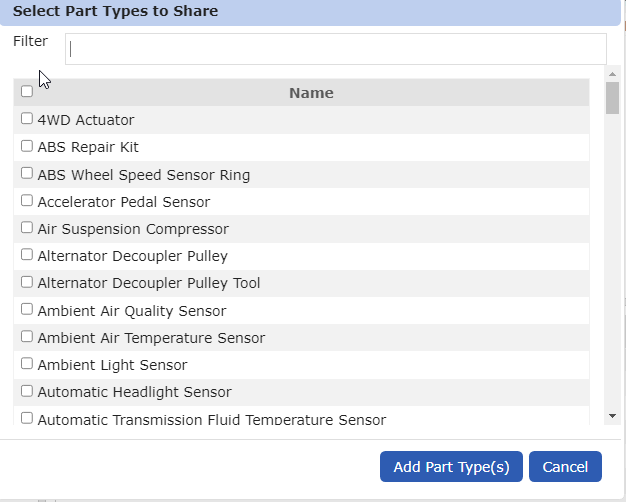
- Select Part Types within those selected brands.

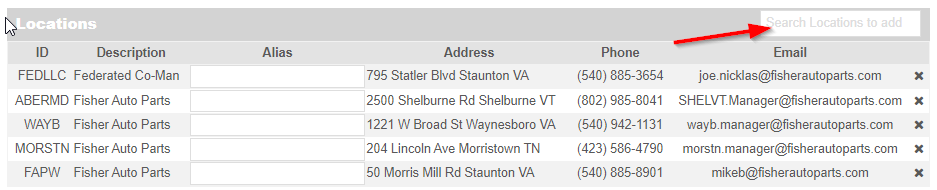
- Select Locations that you wish to share access to. You can also enter an Alias here. This will be how the location appears to users during their part searches.
Subscribing to the Marketplace
Subscribing to other members in the Marketplace works very similarly to the Sharing workflow.
You will see other members who have shared to you along the left panel of the screen.
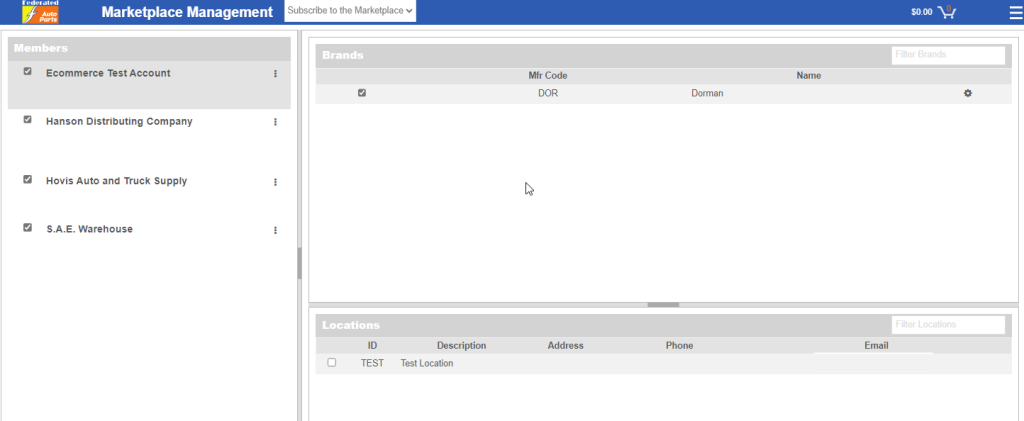
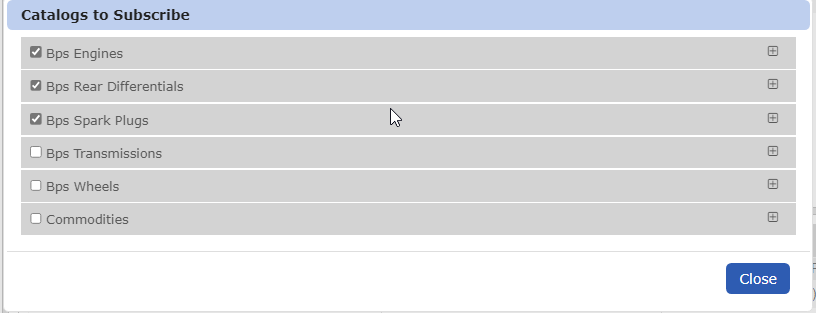
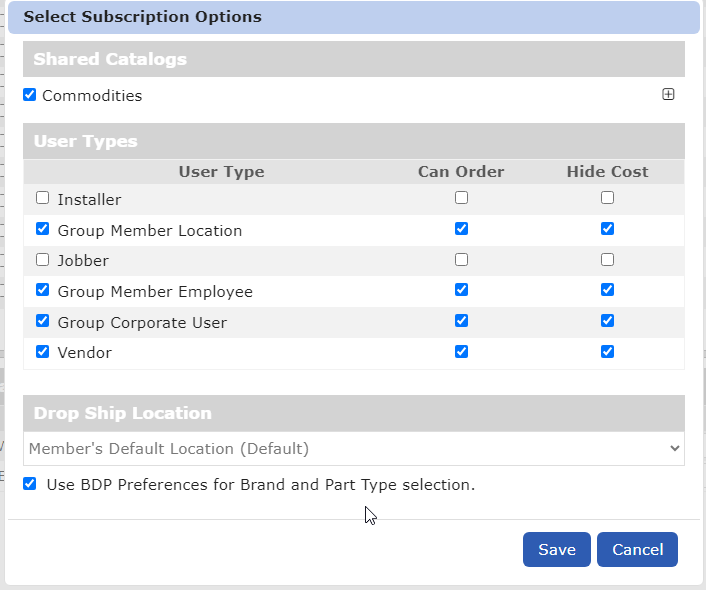
Select a member to subscribe too, and you will be prompted to select User Roles to grant access to, possible Shared Custom Catalogs (if the member has made any available), as well as a Drop Ship Location default for this member. You can also select the ‘Can Order’ flag to discern if those users will need to call the location to order, or if they can add items directly to their cart via the Marketplace window.
** We have updated the Subscription process, to allow you to map Shared Brand/Part Type combinations, to your BDP Settings. This will allow you to quickly map your subscriptions, to products you already have turned on in the catalog. Using this feature does not limit you only to those mappings, and you can still select additional Brands and Part Types in addition to the BDP mapped ones.
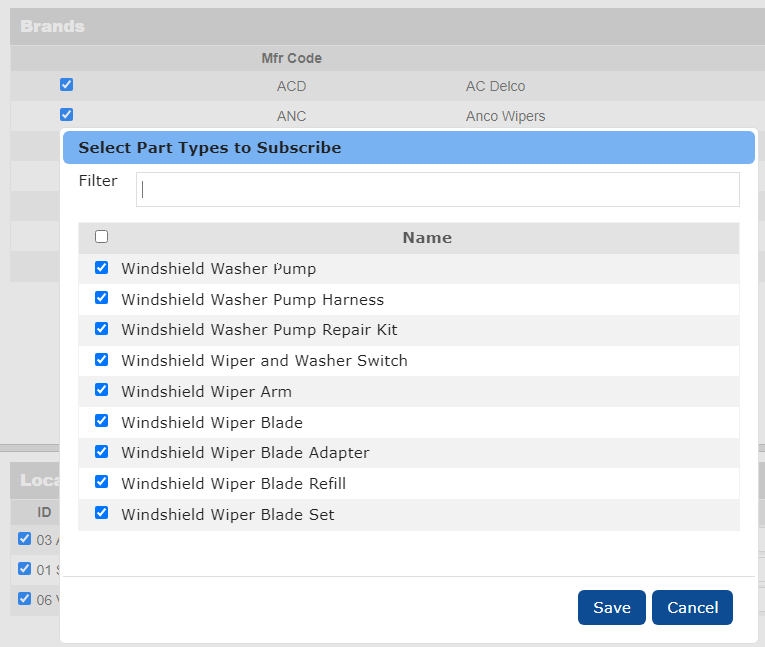
- Select Part Types that have been shared to you. You can use the Filter field to search for specific part types, or use the Select All check in the upper left corner of the list.
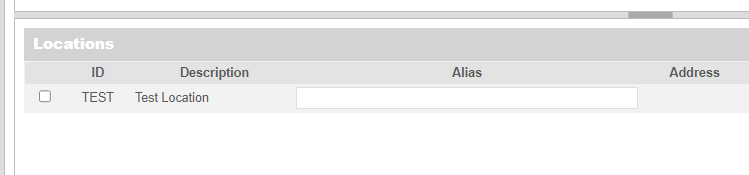
- Choose which locations you’d like to Subscribe to as well and assign them an alias if you wish (not required).
Custom Catalogs – Share & Subscribe
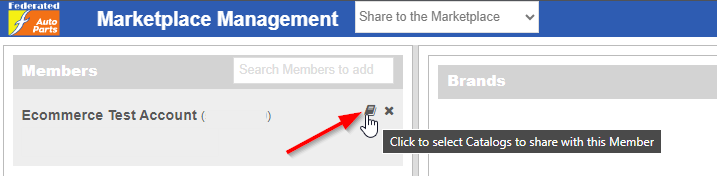
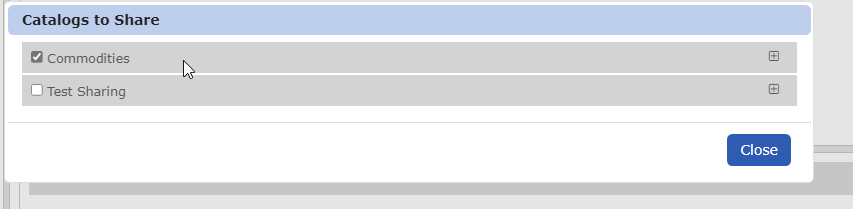
We have added support for Custom Catalogs with our most recent build. These can be found via the small catalog button in the UI next to the member’s name in both the Share & Subscribe workflows. Seen below: