How Can We Help?
Notification Management
We’ve built a tool to push messages to your customers directly on the catalog pages, referred to as Notifications. On this page, you can create, schedule, and edit Notifications.
When you arrive at the Notification Management page from the main menu, you will click ‘Add Notification’ in the top right, to create your first notification.
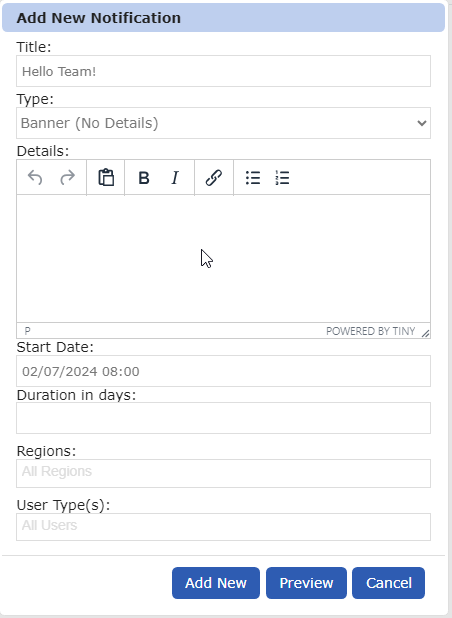
This will open a window with all the fields needed to create your notification:
- Title
- This field is your primary message that will appear as the headline of the notification.
- Type
- There are two types of notifications – Fly-In style, and Banner style.
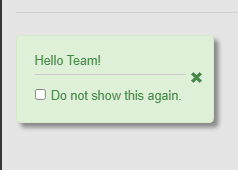
- Fly-In notifications literally fly into screen from the left side of the page as a small box that contains your message, a dismiss ‘X’ button, as well as an option for users to opt out of seeing the notification again.
- Fly in style notifications come in 4 colors. You can select any color for any message, but there is a general guide for the types of messages customers expect to see, related to each color:
- Green – Typically used to convey a basic message, like a promotion or a piece of news that customers will want to know about.
- Blue – Information posts. Good to use for links to documents, policy updates, logistics updates, or general news items.
- Yellow – Often used as warnings, informing customers of potential issues or concerns.
- Red – We recommend using this color when there is a serious issue customers need to be aware of. Examples would be service outages, etc.
- Fly in style notifications come in 4 colors. You can select any color for any message, but there is a general guide for the types of messages customers expect to see, related to each color:
- Banner style notifications put a bar across the top of the screen.

- Start Date / Time
- ‘Duration in Days’ – How long you want this notification to be displayed to users.
- Regions
- User Types
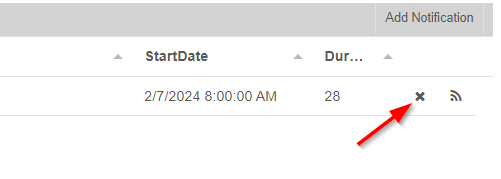
Notifications can be previewed before saving, or during the edit process by clicking ‘Preview’ down at the bottom of the window. You can also delete a notification by click the the ‘X’ on the notification listing page when you first enter the page.